HTML tags are not a list to memorise — they are a tool for marking up meaning. A browser, a search crawler and a screen reader read the same page in different ways, and the only thing all of them rely on is the tags you chose. Below is every current HTML5 tag: what it means, when it fits, which modern tag replaced an obsolete one, and the mistakes that show up in markup most often.
How an HTML document is built
Every page is a tree. The tree has a single root, <html>, and two branches: <head> with service data and <body> with what the visitor sees. Everything else nests inside those two branches, and it is nesting that decides how the browser builds the DOM and where CSS applies its styles.
A minimal valid HTML5 document looks like this:
<!DOCTYPE html>
<html lang="en">
<head>
    <meta charset="UTF-8">
    <meta name="viewport" content="width=device-width, initial-scale=1">
    <title>Page title</title>
</head>
<body>
    <h1>Hello</h1>
</body>
</html>
Four lines here deserve understanding. <!DOCTYPE html> switches the browser into standards mode — without it you get quirks mode, built for documents twenty years old, and box sizing changes. The lang attribute tells the search engine and the speech synthesiser which language the text is in. <meta charset="UTF-8"> must appear within the first 1024 bytes of the document, otherwise non-Latin characters turn into question marks. <meta name="viewport"> is what keeps a phone from showing the page as “the whole desktop width in tiny type”.
Block and inline elements
Historically tags were split into block (div, p, section) and inline (span, a, strong). The HTML5 specification replaced that split with content categories, but in practice the difference holds: a block element takes the full available width and starts on a new line, an inline one flows inside the text. One nesting rule matters: an inline element cannot contain a block one. The single exception is <a>, which HTML5 allows to wrap whole blocks — handy when an entire product card has to be a link.
Semantic page structure
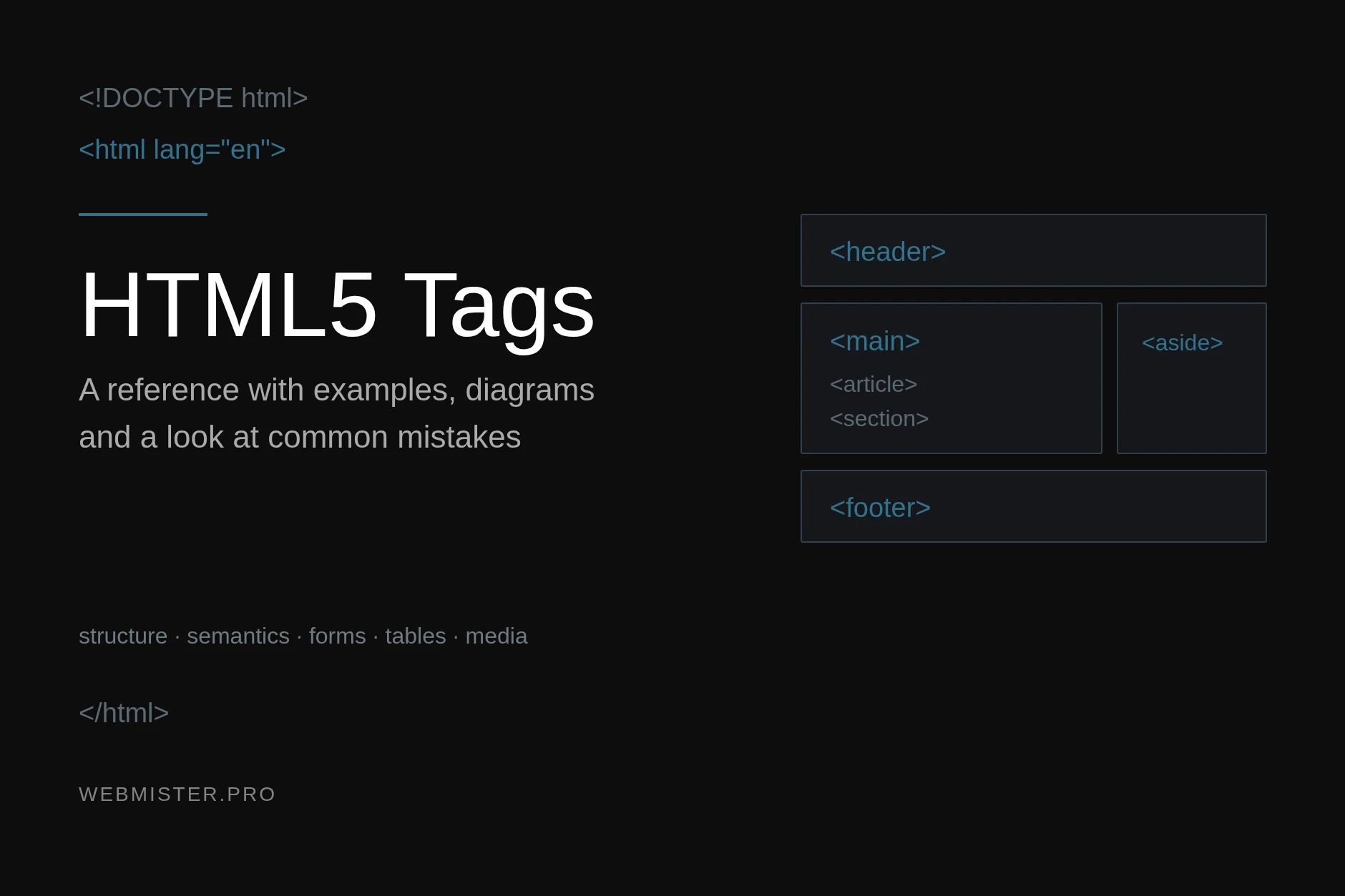
Before HTML5 a typical page was a nest of <div> elements with classes like header, menu, content, sidebar. A machine had no idea what those classes meant — to it they were identical nameless boxes. Semantic tags gave every part of a page a name of its own.
| Tag | What it marks up | How many per page |
|---|---|---|
<header> |
Page header or the opening part of a section: logo, heading, search | Any number — one for the page, one per article |
<nav> |
A navigation block: main menu, breadcrumbs, pagination | Several, but only for meaningful link groups |
<main> |
The page’s primary content, unique to it | Exactly once |
<article> |
A self-contained unit: an article, a product card, a comment | Any number |
<section> |
A thematic part that has a heading of its own | Any number |
<aside> |
Secondary content: sidebar, side note, “read also” block | Any number |
<footer> |
Page footer or the closing part of a section: copyright, author, date | Any number |
<div> |
A block with no meaning of its own — layout and grouping only | When no semantic tag fits |
The difference between <article> and <section> confuses people more than anything else. The test is simple: if a fragment can be cut out of the page, published on its own and still make sense, it is an <article>. If it is merely a meaningful part of something larger, it is a <section>. A blog post is an article. The “Specifications” part inside a product description is a section.
A typical blog page is marked up like this:
<body>
  <header>
    <a href="/">Logo</a>
    <nav><a href="/blog/">Blog</a> <a href="/contacts/">Contacts</a></nav>
  </header>

  <main>
    <article>
      <h1>Article title</h1>
      <p>Article text…</p>
      <section>
        <h2>A part of the article</h2>
        <p>…</p>
      </section>
      <footer>Author, publication date</footer>
    </article>
  </main>

  <aside>Related posts</aside>

  <footer>© 2026</footer>
</body>The payoff is not abstract. A screen reader lets a blind visitor jump straight to main, skipping the menu. A browser’s reader mode recognises article and shows the text alone. A search crawler sees more precisely where the content is and where the furniture repeated on every page begins.
Text: headings, paragraphs and emphasis
These are the tags used daily — and the ones where appearance is most often mistaken for meaning.
| Tag | Purpose | Note |
|---|---|---|
<h1>…<h6> |
Headings of six levels | One h1 per page, never skip a level |
<p> |
A paragraph of text | Cannot contain block elements |
<br> |
Line break | Inside a line only — spacing is CSS |
<hr> |
A thematic break between topics | Not a decorative rule; that is border |
<strong> |
Importance of the content | Looks like b, but means “this matters” |
<em> |
Stress emphasis | A speech synthesiser changes intonation |
<b>, <i> |
Visual emphasis with no added meaning | A term, a ship name, a foreign word |
<mark> |
Highlight relevant to the reader | A match in an on-page search |
<small> |
Fine print | Disclaimer, copyright |
<s>, <del>, <ins> |
No longer accurate, removed and inserted | An old price is s; document edits are del and ins |
<sub>, <sup> |
Subscript and superscript | Formulae, footnotes |
<abbr> |
An abbreviation expanded in title |
The expansion shows on hover |
<time> |
A date or time in machine format | Attribute datetime="2026-10-28" |
<blockquote>, <q> |
Block and inline quotation | Source goes in cite |
<code>, <pre> |
A code fragment and preformatted text | Together they give a code block that keeps indentation |
<kbd>, <samp>, <var> |
Keys, program output, a variable | Documentation and technical writing |
<span> |
An inline container with no meaning | When you just need a styling hook |
The difference between <strong> and <b> is meaning, not weight. “Warning: the server will restart” is strong, because the sentence matters. A product name set in bold by typographic convention is b. The same goes for <em> and <i>: the first changes how the sentence is read, the second merely slants the type.
Headings have a rule that gets broken constantly: levels form the document outline, not a set of font sizes. If h4 follows h2, the outline has a hole in it. Need smaller type? That is a CSS job, not a reason to drop a level.
Lists
HTML has three kinds of list, each for its own job.
<ul>                        <!-- unordered, sequence does not matter -->
  <li>First item</li>
  <li>Second item</li>
</ul>

<ol start="3" reversed>      <!-- ordered, sequence matters -->
  <li>Third in order</li>
</ol>

<dl>                         <!-- description list -->
  <dt>HTML</dt>
  <dd>A markup language for documents</dd>
  <dt>CSS</dt>
  <dd>A language for describing presentation</dd>
</dl>
<ol> has useful attributes people forget: start sets the first number, reversed counts down, type switches markers to letters or Roman numerals. The description list <dl> suits glossaries, product specifications and FAQ blocks: a machine reads term and description as linked, unlike two adjacent paragraphs.
A site menu is a list too. Links simply separated by spaces are read out as continuous text; a list is announced as “navigation, 5 items”.
Links and navigation
<a> is the core tag of hypertext, and a few of its attributes are worth knowing by heart.
<a href="/blog/">Internal link</a>
<a href="https://example.com" target="_blank" rel="noopener noreferrer">External</a>
<a href="#section-2">Anchor on this page</a>
<a href="mailto:[email protected]">E-mail</a>
<a href="tel:+380675024584">Call</a>
<a href="/price.pdf" download>Download the price list</a>
target="_blank" without rel="noopener" is an old security hole: the opened page gets access to window.opener and can replace the original tab. Modern browsers add noopener themselves, but relying on that in someone else’s environment is unwise.
rel also carries SEO meaning: rel="nofollow" tells a search engine not to pass weight, rel="sponsored" marks a paid link, rel="ugc" one from user-generated content. The link text itself must be meaningful: “more” and “here” are equally useless to a search engine and to someone listening to the page through a screen reader, which can list links stripped of their surrounding text.
Images, video and audio
An image in HTML is more than <img>. A whole family of tags surrounds it, solving two problems: captioning the picture and handing the browser a file of the right weight.
<figure>
  <img src="/img/scheme.webp"
       alt="Diagram of an HTML document structure"
       width="1200" height="630"
       loading="lazy" decoding="async">
  <figcaption>The document tree: one root and two branches</figcaption>
</figure>
The alt attribute is always required. It describes the image for those who cannot see it and appears in place of a picture that failed to load. For a purely decorative image write an empty alt="" — a screen reader will skip it, whereas a missing attribute makes it read the file name aloud. width and height are there not for sizing but so the browser can reserve the space in advance: without them the page jumps as it loads, which directly hurts Cumulative Layout Shift in Core Web Vitals. loading="lazy" defers images below the fold.
When different screens need different files, bring in <picture>:
<picture>
  <source srcset="/img/hero.avif" type="image/avif">
  <source srcset="/img/hero.webp" type="image/webp">
  <img src="/img/hero.jpg" alt="Description">
</picture>
The browser takes the first format it understands and stops there. An old browser falls through to <img> and gets the JPEG. The same trick with a media attribute shows a vertical crop on a phone and a horizontal one on a desktop.
| Tag | What for | Key attributes |
|---|---|---|
<img> |
An image | src, alt, srcset, sizes, loading |
<picture>, <source> |
Choosing a file by format and screen | type, media, srcset |
<figure>, <figcaption> |
An illustration with a caption | — |
<video> |
Video in the page | controls, poster, muted, playsinline |
<audio> |
Sound | controls, preload, loop |
<track> |
Subtitles for video | kind, srclang, label |
<canvas> |
A canvas drawn by script | width, height |
<svg> |
Vector graphics inside the markup | viewBox, role, aria-label |
<iframe> |
An embedded external document | loading, sandbox, allow, title |
Autoplay only works as autoplay muted playsinline — without muted a mobile browser blocks it. Always give <iframe> a title: a screen reader announces the frame by it, otherwise the visitor hears an unnamed “embedded area”.
Tables
Tables came back into use once people stopped building layouts with them. For genuine tabular data there is no alternative — but the markup has to be complete.
<table>
  <caption>Hosting plans</caption>
  <thead>
    <tr><th scope="col">Plan</th><th scope="col">Disk</th><th scope="col">Price</th></tr>
  </thead>
  <tbody>
    <tr><th scope="row">Start</th><td>10 GB</td><td>$3</td></tr>
    <tr><th scope="row">Business</th><td>50 GB</td><td>$9</td></tr>
  </tbody>
  <tfoot>
    <tr><td colspan="3">Prices exclude VAT</td></tr>
  </tfoot>
</table>
Three things separate a marked-up table from a grid of cells. <caption> gives it a name that is read out first. <th> with a scope attribute declares the cell a column or row header, so a screen reader moving across cells says “Business, Price, 9 dollars”. Splitting into <thead>, <tbody> and <tfoot> lets the browser repeat the header when printing a long table and scroll the body separately.
On a narrow screen a wide table is always a problem. Two solutions work: wrap it in a container with overflow-x: auto and let it scroll, or rebuild rows as cards in CSS, pulling column headers from data-label. Both keep the markup valid — what breaks a table is squeezing it into the screen by shrinking the font.
Forms and input fields
Forms are the largest group of tags and the only place where HTML does more than display — it collects data.
<form action="/send/" method="post">
  <fieldset>
    <legend>Request</legend>

    <label for="name">Name</label>
    <input type="text" id="name" name="name" required autocomplete="name">

    <label for="mail">E-mail</label>
    <input type="email" id="mail" name="email" required
           placeholder="[email protected]" autocomplete="email">

    <label for="plan">Plan</label>
    <select id="plan" name="plan">
      <optgroup label="Hosting">
        <option value="start">Start</option>
        <option value="pro" selected>Business</option>
      </optgroup>
    </select>

    <label for="msg">Message</label>
    <textarea id="msg" name="message" rows="5"></textarea>

    <button type="submit">Send</button>
  </fieldset>
</form>
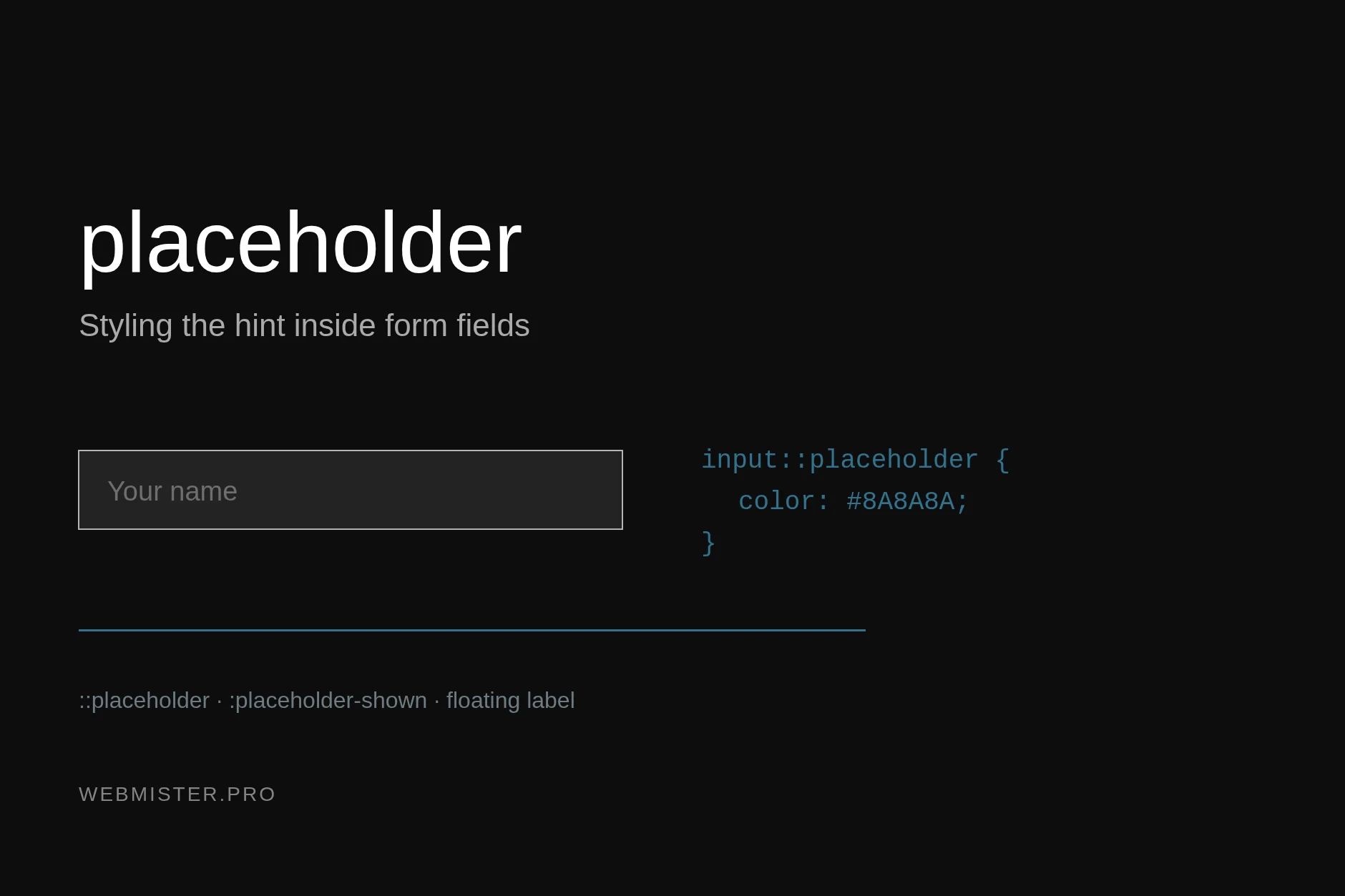
Pairing <label for> with the field’s id is not a formality. It enlarges the tap target — clicking the caption focuses the field — and it tells a screen reader what is being asked. A field with no label, where a placeholder plays that role, is a common mistake: the hint disappears at the first character and the visitor loses track of what they are filling in.
The field type drives both the mobile keyboard and the built-in validation:
type value |
What it gives |
|---|---|
text |
A plain string |
email |
Address format check, keyboard with “@” |
tel |
Numeric keypad, no format checking |
url |
Web address check |
number, range |
A spinner and a slider, with min, max, step |
date, time, datetime-local, month, week |
Built-in calendar and clock |
password |
Masked input |
search |
A search field with a clear button |
checkbox, radio |
A checkbox and a radio button (one name per group) |
file |
File upload, with accept and multiple |
color |
A colour picker |
hidden |
A service value hidden from the visitor |
HTML validation works without a line of JavaScript: required blocks an empty field, minlength and maxlength bound the length, pattern sets a regular expression, min and max limit numbers and dates. It is a first line, not a defence: it does not replace server-side checks, because any request can be sent bypassing the form.
Two more tags in this group deserve attention. <datalist> gives a field suggestions while still allowing a custom value. <output> displays a calculated result — an order total recalculated when the quantity changes, say.
Interactive elements without JavaScript
Behaviour that once required scripts is now built into HTML5.
<details>
  <summary>What does site maintenance include?</summary>
  <p>Updates, backups, uptime monitoring.</p>
</details>

<dialog id="modal">
  <p>Request sent</p>
  <button onclick="modal.close()">Close</button>
</dialog>

<progress value="70" max="100">70%</progress>
<meter value="0.8" low="0.3" high="0.9">80%</meter>
<details> with <summary> is an accordion out of the box: it opens on click, works from the keyboard and is indexed by search engines. An FAQ block built on it needs no JavaScript at all. <dialog> is a modal with correct focus behaviour: showModal() traps focus inside and closes on Escape. <progress> shows how far a process has gone, <meter> a value within a known range, such as disk usage.
Service tags in <head>
Visitors never see these tags, yet they decide how the page looks in search results and in social media.
<head>
  <meta charset="UTF-8">
  <meta name="viewport" content="width=device-width, initial-scale=1">
  <title>HTML5 tags: a reference</title>
  <meta name="description" content="Every current HTML5 tag with examples">
  <link rel="canonical" href="https://example.com/html5/">
  <link rel="alternate" hreflang="uk" href="https://example.com/uk/html5/">
  <link rel="icon" href="/favicon.svg" type="image/svg+xml">
  <link rel="stylesheet" href="/style.css">
  <meta property="og:title" content="HTML5 tags: a reference">
  <meta property="og:image" content="https://example.com/img/cover.webp">
  <script src="/app.js" defer></script>
</head>
<title> is the heaviest textual signal for a search engine and what the visitor sees in the tab. <link rel="canonical"> names the main address of a page when several URLs with parameters lead to it. hreflang ties language versions together — mandatory markup for a multilingual site, without which a search engine shows the wrong version. The og: properties define how the link looks in a messenger or a social network.
One thing to remember about scripts: a bare <script> stops document parsing until the file is downloaded and executed. defer postpones execution until parsing ends and keeps file order; async runs as soon as the file arrives and guarantees no order. Counters suit async, application code suits defer.
Obsolete tags and what replaced them
Browsers still render these, but the specification dropped them: some handled presentation that long ago moved to CSS, some simply did harm.
| Obsolete tag | What it did | Replacement |
|---|---|---|
<font> |
Typeface, size and colour of text | CSS: font-family, font-size, color |
<center> |
Centring | CSS: text-align, margin: 0 auto |
<big>, <tt> |
Large and monospace text | CSS; for code, <code> |
<strike> |
Struck-through text | <s> or <del> |
<marquee>, <blink> |
Scrolling and blinking text | CSS animation, and better without it |
<frame>, <frameset> |
Splitting the window into frames | Ordinary layout; <iframe> where needed |
<applet> |
A Java applet | Not needed; for external content, <iframe> |
<acronym> |
An acronym | <abbr> |
<dir> |
A directory list | <ul> |
align, bgcolor, border, width attributes on tables and blocks |
Presentation inside markup | Entirely in CSS |
<hgroup> is a story of its own. It was removed from the specification, then returned with a different meaning; today a plain <p> next to the heading is enough for a title-and-subtitle pair.
Common markup mistakes
- Several
<h1>on a page. A first-level heading describes the whole page, and there is one of it. Everything else is a level below. - A block inside a paragraph. A
<div>inside<p>is silently fixed by the browser, which closes the paragraph early — and the layout shifts for no visible reason. <br>instead of spacing. Three line breaks in a row try to do with markup whatmargindoes properly.- An image without
alt. Both accessibility and image search traffic are lost. - A button made from
<div>. Such a “button” needs a keyboard handler, aroleandtabindex, while<button>does all of it already. - A link without
href. The element drops out of keyboard navigation. No address — use<button>. - A table used for layout. It does not reflow on mobile, and a screen reader announces it as a data table.
<div>instead of semantics. A page of nothing butdivworks, yet loses everything markup of meaning gives: quick navigation, reader mode, a clear structure for search engines.
How to check your markup
Three tools cover nearly every mistake. The W3C validator finds unclosed tags, wrong nesting and attributes that do not exist. The Accessibility panel in browser developer tools shows the accessibility tree — what a screen reader “sees”. Lighthouse in Chrome checks semantics alongside performance and returns a list of concrete issues.
One self-check is worth more than all of them: open the page with CSS disabled. If the document still reads top to bottom as sensible text with headings, lists and captions, the markup is right. If it turns to mush, the problem is not the styles — it is the tags.
The short version
Keep a handful of rules in mind and the rest follows on its own:
- Choose a tag by meaning, not by looks. The appearance of any element changes with one line of CSS, while the meaning a tag carries is read by machines — and no stylesheet can change that.
- The page structure is
header,nav,main,article,section,aside,footer.<div>is left for cases where none of them fits, not the other way round. - Headings form the document outline. One
h1, then in order, with no levels skipped. - Three attributes people forget most:
alton an image,foron a field label andtitleon a frame. Each costs a couple of minutes and makes a visible difference in accessibility. - A form can validate itself. The right
typeplusrequiredandpatterncover most validation without JavaScript — and still do not replace server-side checks. - Everything about presentation lives in CSS. That is exactly why
font,centerand their neighbours left the specification.
Good markup is almost invisible: the site simply works — it loads fast, reads well on a phone, looks right in search results and in a messenger, and is usable with a screen reader. Bad markup is noticed at once, yet usually treated in the wrong place: styles get patched, scripts added, plugins installed — while the cause is two or three badly chosen tags.
Check your own page right now: open the source and count how many <div> elements it has versus tags that carry meaning. If the first outnumber the second three to one, start at the top of this article and work through the sections. You will not have to rewrite the whole site: renaming a few containers and filling in the missing attributes is usually enough.