The placeholder attribute hints at what a field expects while it is still empty. Styling it once took four vendor prefixes; today a single ::placeholder selector is enough. Let us look at how to style the hint properly, which trick built on it makes a form easier to fill, and why it must never stand in for a field label.
The main point: a placeholder is not a label
The hint disappears at the first character typed. Someone interrupted halfway through the form can no longer tell what they are filling in; in some browsers a screen reader does not read it at all; browser autofill works worse. So every field needs a real <label>, while the placeholder carries only the format or an example.
<!-- don't -->
<input type="tel" name="phone" placeholder="Phone in +380 format…">

<!-- do -->
<label for="phone">Phone</label>
<input type="tel" id="phone" name="phone"
       placeholder="+380 __ ___ __ __" autocomplete="tel">
Changing the colour and the font
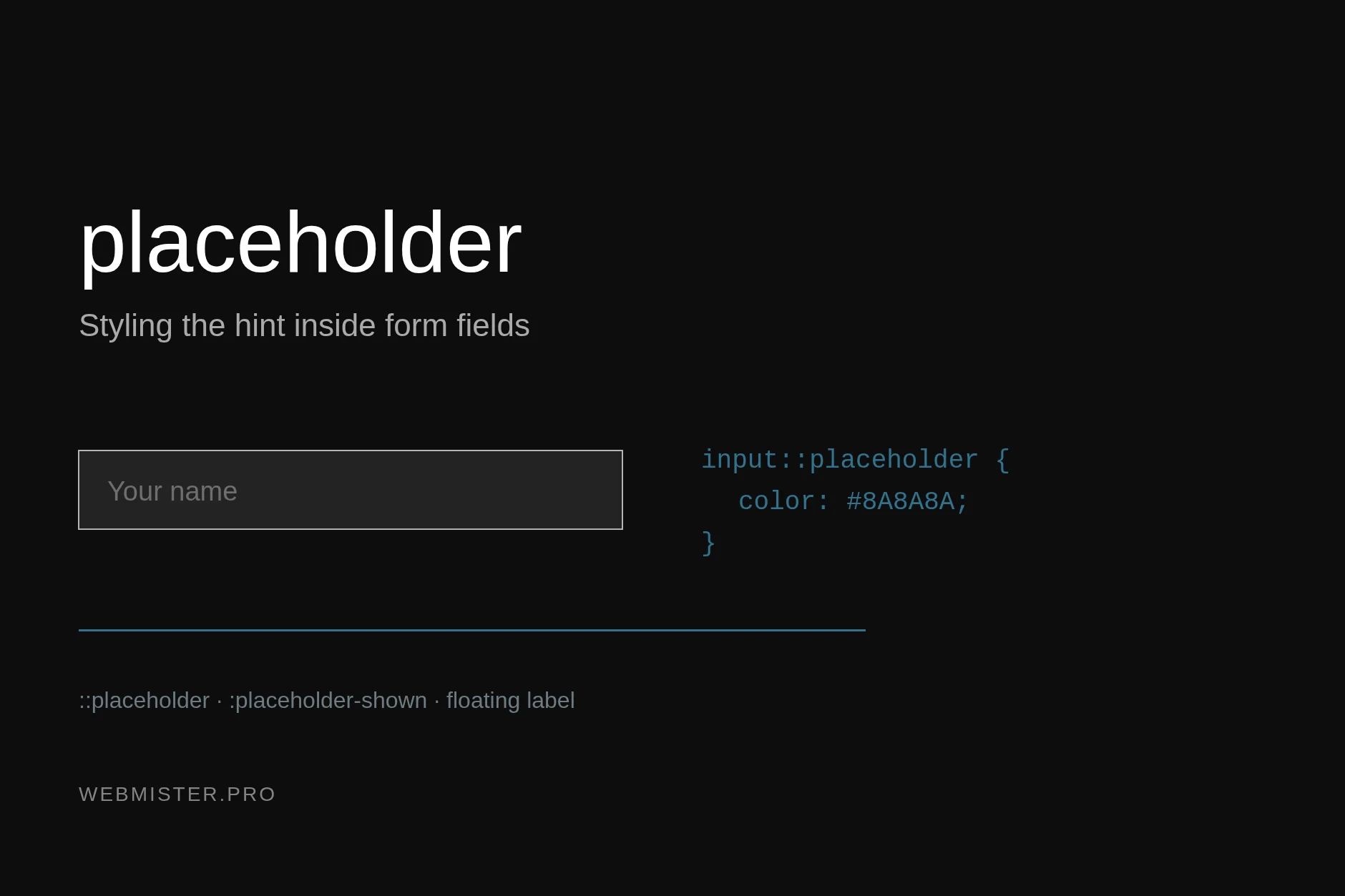
One rule does it now — ::placeholder is supported by every current browser:
input::placeholder,
textarea::placeholder {
    color: #8A8A8A;
    font-style: italic;
    opacity: 1; /* Firefox dims the hint by default */
}
That opacity line is not padding: Firefox has always rendered the placeholder semi-transparent, and without it your chosen colour comes out paler than intended.
The set of properties that actually applies to the hint is small: colour, background, the whole font-* family, letter and word spacing, text-decoration, text-transform, line-height, opacity and text-overflow. Padding, borders and positioning do not apply — those belong to the field itself.
The old prefixes and why they are worth knowing
Articles from five years ago wrote the same effect like this:
::-webkit-input-placeholder { color: #8A8A8A; }
::-moz-placeholder          { color: #8A8A8A; }
:-moz-placeholder           { color: #8A8A8A; }
:-ms-input-placeholder      { color: #8A8A8A; }
The reason was that no standard existed and every engine implemented styling its own way: in IE and in Firefox before version 19 the placeholder counted as a pseudo-class, in WebKit and Blink as a pseudo-element. Today those lines matter only to projects supporting very old browsers. One detail worth remembering: these selectors cannot be joined with commas — a browser that does not recognise one of them discards the whole rule.
A long hint in a narrow field
On a phone fields get narrow and long text is cut off mid-word. An ellipsis looks tidier:
input::placeholder {
    text-overflow: ellipsis;
    white-space: nowrap;
    overflow: hidden;
}
The trick works, but it treats the symptom. If the hint does not fit, it is too long: the pattern “+380 __ ___ __ __” reads better than a full sentence stretched across the field.
Hiding the hint on focus
Browsers differ: some drop the placeholder as soon as the caret lands, others keep it until the first character. One line brings them in line:
input:focus::placeholder,
textarea:focus::placeholder {
    color: transparent;
}
Nicer still, with the hint sliding away:
input::placeholder {
    opacity: 1;
    transition: opacity .2s ease, transform .2s ease;
}

input:focus::placeholder {
    opacity: 0;
    transform: translateX(6px);
}
Field states and :placeholder-shown
A separate pseudo-class, :placeholder-shown, matches while the field is empty and the hint is visible. Tricks that used to need scripting now rest on it.
The floating label — the label sits over an empty field and rises as soon as text appears. The whole effect in CSS:
<div class="field">
  <input type="text" id="name" placeholder=" ">
  <label for="name">Your name</label>
</div>
.field { position: relative; }
.field label {
position: absolute;
left: 12px;
top: 12px;
color: #8A8A8A;
pointer-events: none;
transition: transform .15s ease, font-size .15s ease;
}
/* field filled or focused — the label moves up */
.field input:not(:placeholder-shown) + label,
.field input:focus + label {
transform: translateY(-22px);
font-size: 12px;
}The space in placeholder=" " is required: with no attribute at all, :placeholder-shown never matches.
The same selector highlights unfilled required fields, and only after the visitor has touched them:
input:required:not(:placeholder-shown):invalid {
    border-color: #C0392B;
}
Accessibility and dark mode
- Contrast. Light grey hint text on white is the classic mistake. WCAG asks for at least 4.5:1 on body text; keep the hint subdued but readable.
- Do not drop the label just to keep things clean. If the design calls for fields without a visible label, the label still has to exist in the markup — at the very least as
aria-label. - Dark mode. Set the hint colour as a token and override it in a media query:
input::placeholder { color: #8A8A8A; }

@media (prefers-color-scheme: dark) {
    input::placeholder { color: #9B9B9B; }
}- Keep anything important out of the placeholder. Password requirements, date format, whether a field is required — that is text beside the field, not a hint that vanishes.
The short version
Styling the hint now takes ::placeholder, and the vendor prefixes only matter when very old browsers are on the list. For field states there is :placeholder-shown: it carries the floating label and the highlighting of empty fields, with no JavaScript. The main rule has not changed: the placeholder shows the format, the label says what the field is, and neither replaces the other.
If the form on your site works but visitors abandon it halfway, write to us — we will find where the leads are being lost.