Understanding the Fundamentals: HTML and CSS for WordPress

Navigating the vast ecosystem of WordPress can often feel like operating a sophisticated vehicle with an automatic transmission. For the vast majority of day-to-day tasks—such as publishing blog posts, managing media libraries, and installing pre-built themes—site owners never need to pop the hood. However, the moment you want to customize a specific design element, tweak a stubborn widget area, or resolve a minor layout glitch that your theme settings simply cannot fix, relying entirely on visual page builders or out-of-the-box configurations hits a hard wall. This is precisely where a foundational understanding of HyperText Markup Language (HTML) and Cascading Style Sheets (CSS) transforms a frustrated site owner into an empowered digital publisher. Grasping these two core web technologies is not about turning you into a full-stack software engineer; rather, it is about acquiring the linguistic keys to communicate directly with your WordPress site’s underlying architecture.
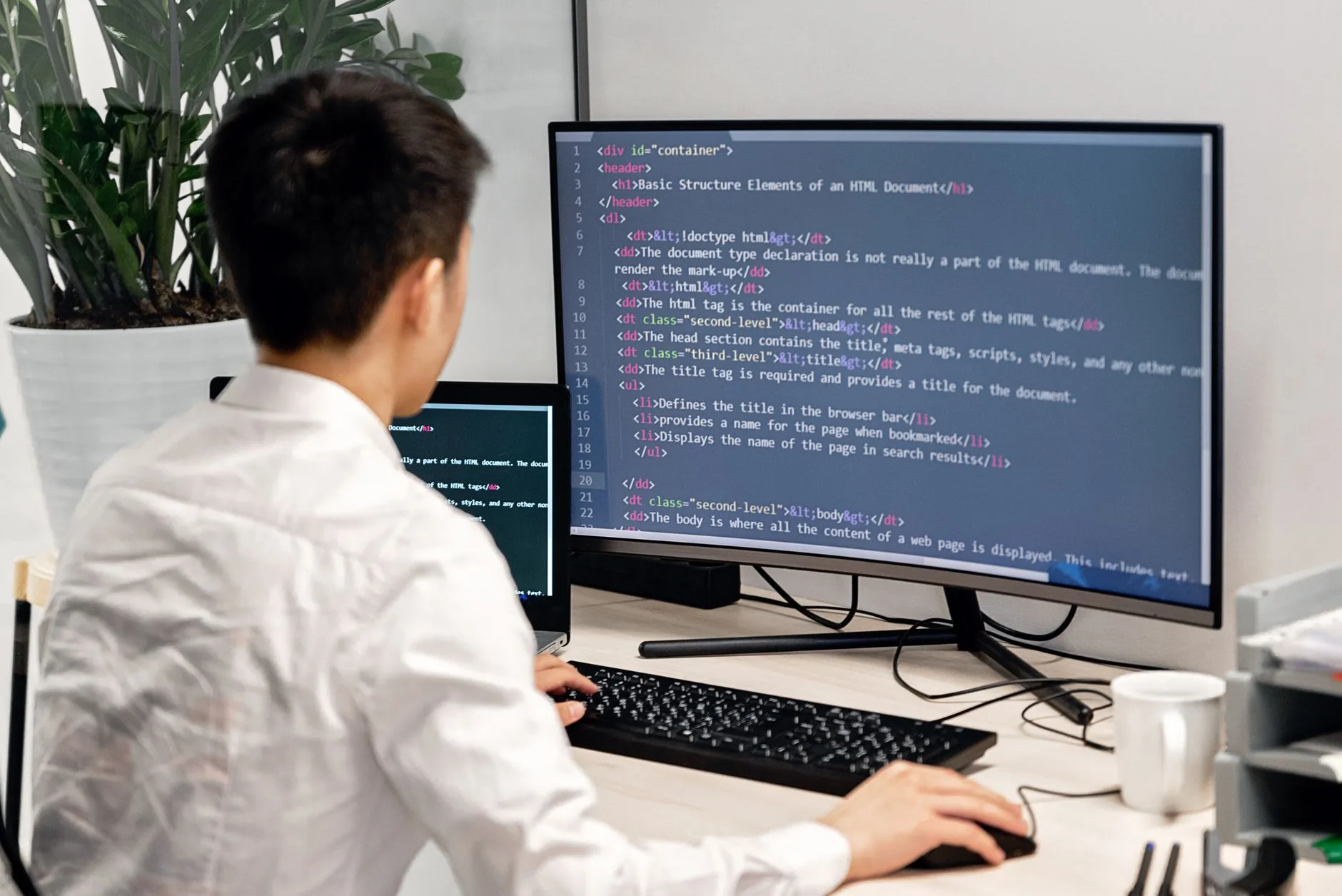
To understand how these two languages operate within a WordPress environment, it helps to examine their distinct roles. HTML is the markup language that defines the structure and meaning of a page, while CSS controls presentation such as colors, spacing, typography, and layout; this distinction remains the core starting point for HTML and CSS for WordPress beginners. When you write a paragraph of text inside the WordPress Block Editor, WordPress automatically translates that block into HTML tags behind the scenes. For instance, a standard paragraph is wrapped in `
` tags, a primary heading is enclosed in `
` tags, and an image is rendered via an `![]() ` element with specific attributes pointing to its source file. HTML provides the raw bones, the semantic skeleton, and the hierarchical order of every single piece of content on your website. Without HTML, a web browser would have no way of knowing whether a string of text is a clickable hyperlink, a numbered list item, or a major section heading.
` element with specific attributes pointing to its source file. HTML provides the raw bones, the semantic skeleton, and the hierarchical order of every single piece of content on your website. Without HTML, a web browser would have no way of knowing whether a string of text is a clickable hyperlink, a numbered list item, or a major section heading.
On the other side of the design equation lies CSS, which acts as the interior designer, stylist, and architect of visual presentation. If HTML decides that a particular block of text is a heading, CSS determines whether that heading appears in a bold serif font, colored in a striking shade of navy blue, centered on the screen, or padded with forty pixels of empty whitespace below it. While HTML focuses purely on content structure, CSS isolates the visual styling rules into a separate layer. This separation of concerns is one of the greatest triumphs of modern web development. Because CSS rules can be applied globally across thousands of pages simultaneously through a single stylesheet file, you can completely change the visual identity, color scheme, and typography of an entire WordPress website in mere seconds simply by modifying a few lines of code, without ever having to touch the underlying structural HTML of your individual blog posts or pages.
Why is this knowledge so crucial for everyday WordPress site owners? Relying solely on third-party page builders and theme customizers can often bloat your site with excessive, unnecessary code, leading to slower loading speeds and frustrating layout shifts. Furthermore, when a pre-built theme fails to provide a toggle switch for a minor visual tweak—such as reducing the excessive margin beneath your header or changing the hover color of your navigation menu buttons—site owners without basic coding knowledge are forced to install yet another bloated plugin or wait indefinitely for support forums to answer their questions. By understanding basic HTML tags and CSS selectors, you gain the precise capability to make targeted micro-adjustments directly within the WordPress Customizer’s Additional CSS panel or the Block Editor’s advanced HTML code view.
Consider the practical advantages of this empowerment through a few common real-world scenarios frequently encountered by WordPress administrators:
- Targeted Text Formatting: Inserting inline HTML tags allows you to emphasize specific words, create superscript trademark symbols, or force line breaks where the default editor falls short.
- Quick Visual Overrides: Writing a three-line CSS snippet can instantly correct misaligned button borders, adjust line heights for better mobile readability, or hide unwanted meta-information like author dates without altering core theme template files.
- Confident Troubleshooting: When a visual editor corrupts a block or outputs broken formatting, switching to the Code Editor view allows you to spot unclosed HTML tags (`